
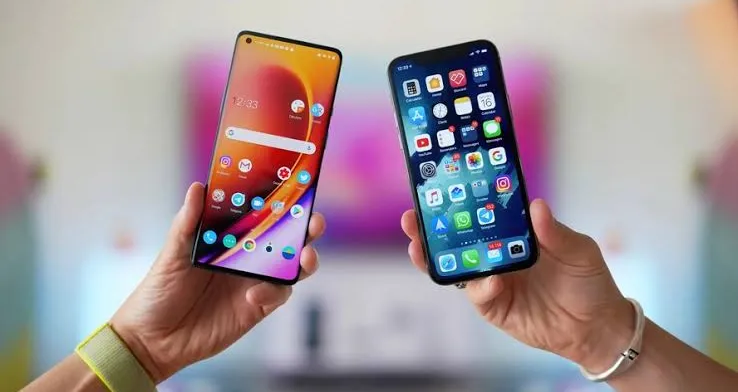
How to Transfer Everything from Your Old Phone to Your New One
The joy and panic of a new phone
The big day has arrived! You have a brand-new smartphone in your hands. The new smell, the pristine screen, the speed... it's a fantastic feeling. But then, that chilling thought comes: "Now, how do I get all my stuff onto this?" Years of photos, family and work contacts, WhatsApp conversations, banking apps. Just thinking about it makes you feel lazy.
Relax! Take a deep breath. Nowadays, transferring your data from one phone to another is much easier than it seems. Manufacturers like Apple and Google have created tools that do almost all the work for you. In this guide, we'll show you, step-by-step, how to make this transition smoothly and without losing anything along the way.
What to do before you start
A little preparation can save you a lot of headaches. Before you start the transfer, follow these three essential steps:
1. Perform a full backup
Think of this as insurance. You probably won't need it, but if something goes wrong, you'll be glad you did. Back up your old phone. If it's an iPhone, use iCloud or your computer (iTunes/Finder). If it's an Android, use Google Backup. Make sure the backup is recent, preferably done minutes before you start the transfer.
2. Charge both phones
The transfer process can take some time, depending on the amount of data you have. The last thing you want is for one of the phones to die halfway through. Plug both into power or ensure they have at least 80% battery.
3. Connect to a stable Wi-Fi network
You'll be transferring several gigabytes of data. Doing this with mobile data can deplete your allowance in a blink of an eye. Use a reliable and fast Wi-Fi network so the process is quick and you don't have any surprises on your bill.
Let's get started: how to transfer your data
The exact method varies depending on the phone brands. Let's look at the most common scenarios.
Case 1: iPhone to iPhone (The easiest)
Apple has made this process incredibly simple with the Quick Start feature. It works like this:
- Turn on your new iPhone and place it next to your old one.
- On the old iPhone, a screen will appear to set up the new one. Tap "Continue".
- An animation will appear on the new iPhone. Use the old one's camera to scan it, like a QR code.
- Follow the on-screen instructions. You may need to enter your old iPhone's passcode and set up Face ID or Touch ID.
- The phone will ask if you want to transfer directly from the iPhone. Choose that option.
Now just wait. The two phones will communicate and transfer everything: your apps, photos, settings, and even your wallpaper. It's almost magic.
Case 2: Android to Android (Also simple)
When you turn on a new Android phone for the first time, the system itself asks if you want to copy data from an old device. The process is very similar:
- On the new phone, during initial setup, choose the option to copy apps and data.
- The system will ask you to connect the two phones with a cable (the fastest way) or to do it wirelessly.
- On the old phone, confirm that you want to start the copy.
- Select what you want to transfer (contacts, photos, apps, etc.) and let the magic happen.
Extra tip: Many brands (like Samsung, Xiaomi, or Huawei) have their own transfer apps, such as Smart Switch or Mi Mover. These apps are usually even more comprehensive, also transferring alarms, icon layout on the screen, and other brand-specific settings.
Case 3: Android to iPhone (Switching teams)
Decided to switch to the Apple ecosystem? Welcome! Apple has created an app to help you: "Move to iOS".
- Install the "Move to iOS" app from the Google Play Store on your old Android phone.
- Start setting up your new iPhone. On the "Apps & Data" screen, choose the "Move Data from Android" option.
- The iPhone will display a 6 or 10-digit code. Open the app on Android, agree to the terms, and enter that code.
- On Android, select what you want to transfer: contacts, message history, camera photos and videos, browser bookmarks, email accounts, and calendars.
- Wait for the transfer to finish. The iPhone will also try to find your free apps in the App Store and install them. Paid apps will need to be purchased again.
Case 4: iPhone to Android (The other switch)
Switching from an iPhone to an Android is also quite simple nowadays. During the setup of your new Android, it will detect that you're coming from an iPhone and guide you:
- Ideally, you should have a Lightning to USB-C cable to connect the two phones directly. It's the fastest and most complete method.
- Follow the instructions on your new Android's screen. It will ask you to trust the device on your iPhone.
- Then, you can choose what you want to copy. The system can pull contacts, calendars, photos, and videos.
- What about WhatsApp? Fortunately, WhatsApp now allows you to transfer chat history between iOS and Android. The option appears during the initial setup of WhatsApp on the new phone when it detects a backup to transfer.
Done! Now what? What to do next
The transfer is complete, but there are still two or three important things to do.
Check if everything is in place: Open the gallery and see if your photos are there. Confirm your contacts. Open the most important apps. Take a general look to ensure nothing was lost.
Log in to your apps: For security, your sessions are not transferred. You will need to log in again to social media, email apps, banks, and other services.
Don't delete your old phone yet! This is the most important advice. Keep your old phone for one or two weeks. Use the new one daily. It's very common to only remember that specific app or forgotten file after some time. Only after you are 100% sure that everything is on the new device should you factory reset the old one.
If you then want to sell your old phone, visit our store. At iCase, we evaluate your equipment, and you can use it to get a discount on the purchase of a new one or one of our verified pre-owned devices with a warranty.
Need a hand?
Although the process is increasingly simple, sometimes unforeseen events arise. If you feel insecure or if something is not going as expected, do not hesitate to ask for help. If you buy your new smartphone at iCase, in São João da Madeira, our team will be happy to help you make the transition so you leave the store with your new companion ready to use, with everything in the right place.
Ready to equip your smartphone?
Cases, chargers, screen protectors, and much more — with expert advice and fast shipping.