
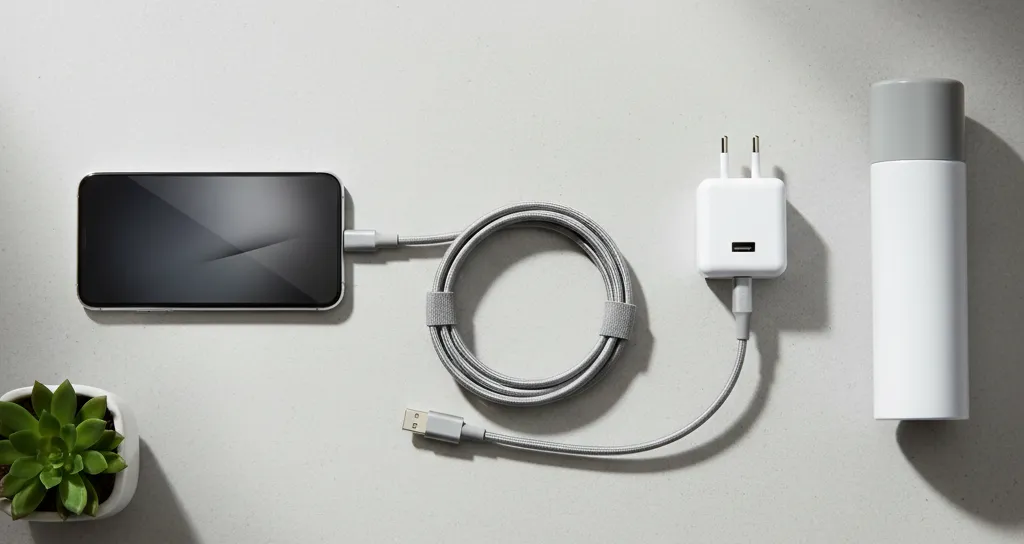
Phone Not Charging? First Aid Guide
Phone Not Charging? First Aid Guide
You get home after a long day, your phone battery is almost dead, you plug in the charger and... nothing. The charging symbol doesn't appear, the percentage doesn't go up. It's a frustrating and all too common scenario, but take a deep breath. Most of the time, the solution is simpler than you imagine and doesn't mean you have to buy a new phone.
Before you think the worst, let's troubleshoot step-by-step, from the simplest to the most complex. Grab your phone and let's get to it.
Step 1: Check the usual suspects
The cause of the problem is often in the accessories we use every day. They suffer the most wear and tear and, fortunately, are easier and cheaper to replace.
The USB cable
The cable is, by far, the most frequent culprit. We bend it, coil it, step on it, and pull it carelessly. Over time, the internal wires break, even if the exterior looks intact.
- Test with another cable: The quickest way to rule this out is to use a different cable that you know is working. If the phone starts charging, you've found the problem.
- Visual inspection: Look for kinks, cuts, or wear near the connectors (the ends). If the cable is fraying, it's time to retire it.
- Use quality cables: Very cheap or uncertified cables can not only fail quickly but also damage the battery or charging port of your device.
The power adapter (the “plug”)
Next on the list of suspects is the adapter that plugs into the wall. Like cables, it can also break down.
- Test with another adapter: Borrow one or use one from another device you have at home. Connect your cable (the one you've already confirmed works) to this other adapter.
- Connect to a computer: Another simple test is to plug the USB cable directly into a USB port on a laptop or desktop computer. If the phone charges (albeit more slowly), it's likely that your power adapter has “given up the ghost”.
The electrical outlet
It seems obvious, but it happens. The outlet you're trying to charge from might not be working. Test it with another appliance, like a lamp, to make sure the problem isn't with the electrical installation.
Step 2: Clean the charging port
Your phone spends a lot of time in your pocket or bag. It's natural for the charging port to accumulate dust, lint, and other dirt. This buildup can prevent the cable plug from making good contact.
Attention: Cleaning the charging port requires care. If you don't feel comfortable, it's best not to risk it. You can visit our store in São João da Madeira and we'll take a look.
If you decide to proceed, follow these steps with great care:
- Turn off the phone. This step is essential to avoid short circuits.
- Use a light source. Point the flashlight of another phone or use a lamp to clearly see inside the port.
- Use the right tool: NEVER use metal objects like needles or paper clips! You can permanently damage the electrical contacts. Instead, use a wooden or plastic toothpick, or a soft, dry toothbrush.
- Clean gently: Very gently scrape the inner walls of the port to loosen dirt. Do not force it.
- Blow it out: The best option is to use a can of compressed air, keeping it upright and giving short bursts, to expel debris. If you don't have one, you can blow hard, but carefully so as not to project moisture inside.
After cleaning, try charging the phone again.
Step 3: The universal solution - restart
Sometimes, the problem isn't hardware, but software. A small error in the operating system can cause the phone not to recognize that it's connected to power.
Simple Restart: The first thing to try is a normal restart. Turn off the phone, wait about 30 seconds, and turn it back on. In many cases, this simple act solves the problem.
Forced Restart (Hard Reset): If the screen doesn't respond or the phone is completely frozen, you'll need to force a restart. The process varies between models:
- On a recent iPhone: Quickly press and release the volume up button, then the volume down button, and finally, hold the side button until the Apple logo appears.
- On an Android: Generally, it involves holding the power button and the volume down button simultaneously for 10 to 15 seconds.
A forced restart does not erase your data. It's just a more “profound” way to turn the device off and on.
What if none of this works?
If you've tried everything and your faithful companion still shows no signs of life when you plug it in, the problem is probably internal and needs professional analysis.
The most common causes are:
- End-of-life battery: Batteries have a limited number of charge cycles. Over time, they lose capacity and eventually can no longer hold a charge. A “dead” battery needs to be replaced.
- Damaged charging port: The part itself inside the phone may be broken or have desoldered contacts due to drops or excessive force when plugging in the cable. This is a common repair.
- Motherboard failure: In rarer cases, the problem may be in the integrated circuit that manages charging on the phone's main board. This is a more complex repair.
In these situations, it's best not to improvise. Trying to open the phone at home without the right tools and knowledge can turn a repairable problem into a much greater loss.
At iCase, our technicians diagnose to identify the exact origin of the fault. We provide you with a repair quote and, if you approve, we take care of everything. All our repairs come with a warranty, so you can rest assured.
If the repair isn't worth it, we also have a selection of refurbished smartphones, 100% checked and with a warranty, which can be an excellent alternative. And if you're not from São João da Madeira, no problem – we work with Nacex for shipments and collections throughout the country.
Next time your phone refuses to charge, you know where to start. And if the solution is beyond your reach, you know where to find us!
Ready to equip your smartphone?
Cases, chargers, screen protectors, and much more — with expert advice and fast shipping.